A deleted Ancestry tree cannot be recovered
Read this before you delete a family tree on Ancestry. The Deleting a Family Tree article says that when you delete a tree you created or uploaded, it is permanently deleted from Ancestry, and that once a tree is deleted it cannot be recovered. The app article repeats that deleting a tree is permanent and cannot be undone.
The same article adds that deleting a tree also permanently deletes any connected networks, including their stickies. The tree goes with everything in it, apart from the exceptions further down this page. Keep a copy first, because Ancestry offers no way back.
Genogram Builder
Keep the family as a chart
Before the tree goes, open its GEDCOM file in the editor and keep the family as a chart and a project file.
- Opens the ZIP file of a GEDCOM export
- Up to 1,000 people on one chart
- JSON and GEDCOM files with a free account
Download a GEDCOM file of the tree before you delete it
A GEDCOM file is the copy to keep. The Uploading and Downloading Trees article calls it a text-only file that contains all of the facts and information for a tree. Other genealogy programs read it, and the same article explains how to upload it to Ancestry again as a new tree.
- Open the tree
From any page on Ancestry, click the “Trees” tab and select the tree.
- Open Tree Settings
In the toolbar on the left, select “More”, the three dots, then “Tree Settings”.
- Export the tree
On the right of the page, under “Manage your tree”, select “Export tree”. If “Download your GEDCOM file” already shows, skip the next step.
- Wait for the file
Select “Export”. The button spins and says “Generating a GEDCOM file”.
- Download it
When it stops spinning, select “Download your GEDCOM file”. The file arrives inside a ZIP file.
The GEDCOM file keeps the facts but not the photos
Ancestry says that photos, media and similar items are not included in a GEDCOM file. Files created on Ancestry after November 2022 do hold information about where your media files are saved on Ancestry, and Ancestry relinks the media when the file is uploaded again, if the files are still available. After the tree is deleted, do not count on those links.
Save a copy of every photo, scanned document and story you want to keep before you delete the tree. Open the ZIP file on your computer and check that the GEDCOM file is inside and is not empty. Keep the ZIP file and your saved photos in two places, such as your computer and a backup drive.
Delete the tree on the website from the bottom of Tree Settings
With the copy saved, you are ready to delete the family tree on Ancestry. Return to the same page. The deletion link is at the bottom of Tree Settings, away from the everyday settings, so scroll down to find it.
- Open the tree
From any page on Ancestry, click the “Trees” tab and select the family tree.
- Open Tree Settings
In the toolbar on the left, select “More”, the three dots, and then “Tree Settings”.
- Find the link
In the bottom right corner of the Tree Settings page, select the “Delete your tree” link.
- Confirm
Select “Delete”. The tree is deleted and cannot be recovered.
The Ancestry app deletes a tree from Manage tree
The app takes a different route to the same result. The Managing a Tree in the Ancestry App article says to tap your profile icon in the top left corner and, under “Manage tree”, tap the name of the tree. Tap “Delete Tree”, then tap “Yes” in the menu that asks you to confirm. The article states that deleting your tree is permanent and cannot be undone.
The GEDCOM steps in Ancestry’s help are for the website, and the app article gives no export step. Download the file on a computer, or in the browser of a phone, before you delete the tree in the app.
Some facts and media may stay on Ancestry after the tree is gone
Deleting a tree does not remove everything everywhere. The deletion article says that if any facts or media were already on the site before being attached to your tree, or if your tree was ever public, facts or media in your tree may remain on the site. A tree that was public could have been copied by other members, and the privacy article says items others saved while it was public stay visible in their trees.
The tree name may also go on appearing in search results until family trees are next indexed. Ancestry says that a person who selects it then sees a message that the tree has been removed.
Deleting a tree and deleting the Ancestry account are separate steps
Deleting a tree and deleting the account are different actions, and the second is far larger. The Deleting Your Ancestry Account article confirms that you can delete trees from your account at any time, or make your trees private, without deleting your Ancestry account. It also says that after you delete your account, all shared trees are removed from Ancestry, and that once the account is deleted neither you nor Ancestry can stop or reverse the process.
If the aim is to hide the tree rather than lose it, change its privacy instead of deleting the family tree on Ancestry. The Family Tree Privacy article describes a private tree that does not appear in search, set under “Privacy Settings” in Tree Settings with the box “Also prevent your tree from being found in searches”.
| Action | What it removes | Can it be undone |
|---|---|---|
| Make the tree private and unsearchable | Nothing, the tree is hidden from search and hints | Yes, change the setting back |
| Remove a tree shared with you | The tree from your own list only | Not described by Ancestry |
| Delete a tree you own | The tree and its connected networks | No |
| Delete the Ancestry account | The account and all its shared trees | No |
The GEDCOM file opens in the editor as a chart of the family
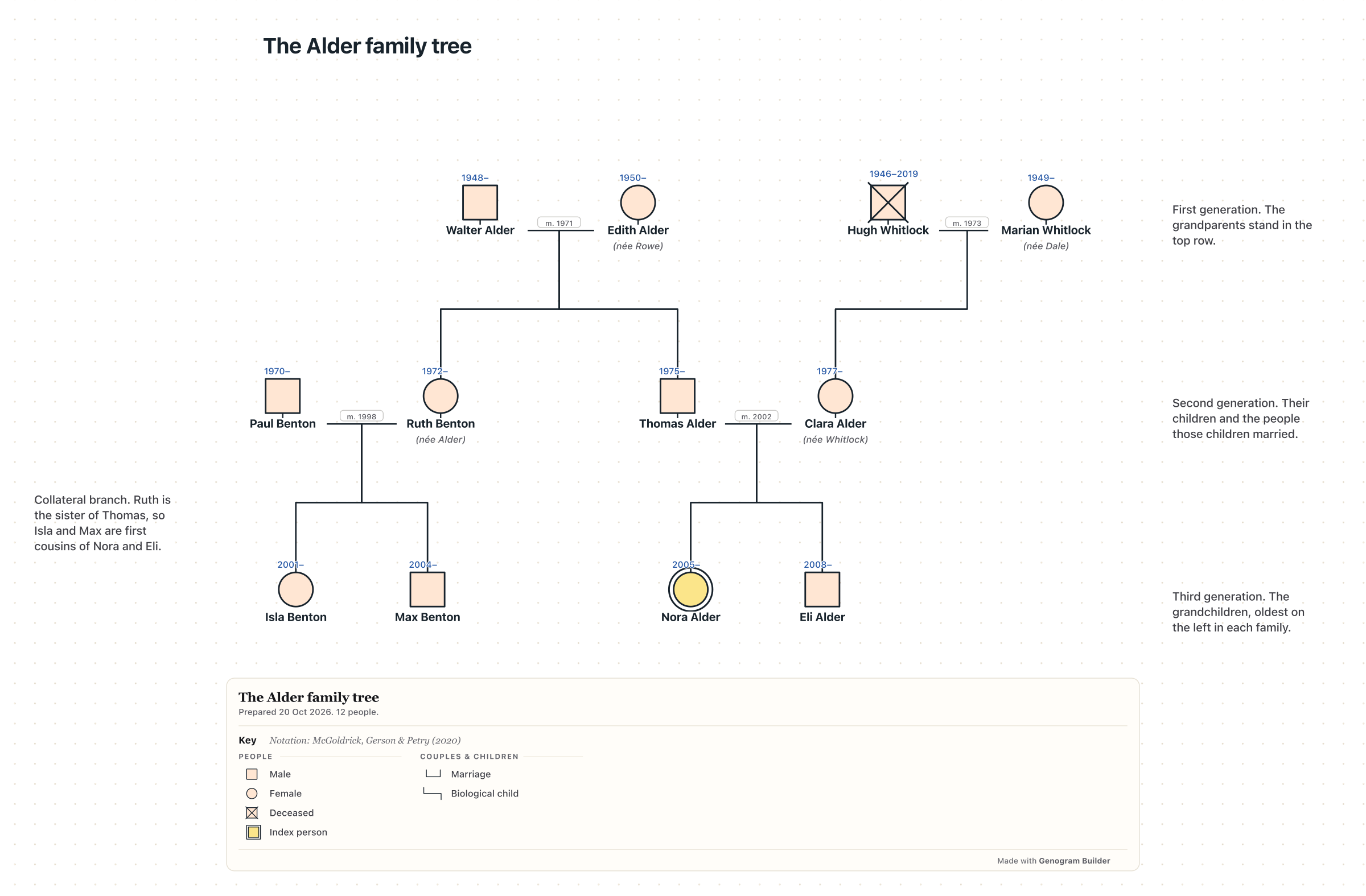
A GEDCOM file is a list of facts, and it is easier to keep when you can see the family it holds. Open Genogram Builder, choose Export, then Import a family file, and select the ZIP file as Ancestry delivered it, or drop it on the canvas. The import shows how many people the file holds before anyone is placed, which is a quick check that the download is complete. One chart holds up to 1,000 people, so for a larger tree choose One person’s family and up to five generations above and below one person.
With a free account you can then save the chart as a JSON project and export it as a GEDCOM file, a PDF or a PNG. The editor is not a genealogy database and does not replace the original GEDCOM file, so keep that file as the full copy of your Ancestry tree.
Common questions
Whether a deleted tree can be restored
Ancestry states that a deleted tree cannot be recovered. Upload the GEDCOM file you saved to start a new tree with the same people and facts.
Whether deleting a tree deletes the account
No. Ancestry’s account article says you can delete trees at any time without deleting your Ancestry account. Deleting the account is a separate step that cannot be reversed.
Deleting one person instead of the whole tree
Ancestry deletes single people too, and its help for the app says that deleting someone is permanent and cannot be undone. Download a GEDCOM file first in that case as well.
Sources and methodology
We make Genogram Builder. We used the references below for this guide. Last checked on 11 November 2026.
Open the GEDCOM file of your Ancestry tree and keep the family as a chart before you delete the tree.