Ancestry prints the part of the tree on your screen
Ancestry’s Printing a Family Tree article answers the main question plainly. Only the part of your tree that is visible on your screen prints, and printing an entire tree at once is not currently available. To print a family tree from Ancestry you therefore set up the screen first, then print it, and repeat for each part of the tree you want on paper.
The article also warns that printed trees may look a little different on paper than they do on screen. Print one page and check it before you print every branch.
- Open the tree
Sign in on the Ancestry website on a computer and go to your family tree.
- Choose a view
In the toolbar on the left, select “View”, then choose the horizontal, vertical or fan layout.
- Move to the part you want
Drag the tree until the people you want to print are on the screen.
- Print
In the toolbar on the left, select “More”, the three dots, then “Print”.
- Confirm
Select “Print”, then confirm with “OK” or “Print” in the dialog of your browser.
Genogram Builder
Print the whole tree as one chart
Import the GEDCOM file of your Ancestry tree and print it as a PDF on one sheet or across several pages.
- Opens the ZIP file of a GEDCOM export
- Paper from A4 and Letter up to A0
- PDF with a free account, with a watermark
The view you choose decides the shape of the printed page
The three layouts print three different charts. The Navigating an Ancestry Family Tree article, which calls the toolbar button “Tree view”, says the horizontal view is a pedigree of direct ancestors only. The vertical view is an extended family that shows everyone in the tree, with ancestors above and descendants below. The fan view shows up to four generations of direct-line ancestors in a half circle, and five to seven generations need a Pro Tools membership. Pick the view first, because the print shows the layout you are looking at.
The printing article gives no setting for the number of generations or the scale of a printed tree. The navigating article lists a “Zoom” control in the same left toolbar, which changes how much of the tree fits on the screen and so how much reaches the page. Zoom out to fit more people, and zoom in when the names on the test page are too small to read.
| Ancestry view | What the printed page shows | Use it for |
|---|---|---|
| Horizontal | A pedigree of direct ancestors only | A chart of your own line |
| Vertical | An extended family, with ancestors above and descendants below | One branch with aunts, uncles and cousins |
| Fan | Up to four generations of direct ancestors in a half circle, or seven with Pro Tools | A short chart of direct ancestors |
A phone can print from the browser but not from the Ancestry app
The article states that printing trees is not currently available in the Ancestry app. On a phone or a tablet, open the Ancestry website in the browser instead. Tap “Menu” in the bottom left corner, and above View select a tree view icon to set the layout. Move to the part you want, tap “Menu” again and choose “Print”, then follow the prompts of your device.
This is the main difference between the web and the app for printing. The same rule applies to the facts page of a person, which Ancestry also prints from a browser only.
A family group sheet and a facts page print one family at a time
For a record of one family instead of a picture of the tree, print a family group sheet. Go to the profile page of someone in your tree. In the top left corner, select the tree name menu and choose “Family group sheet”, then select “Print” in the top right corner and confirm. On a phone browser, the tree name menu is a down arrow and Print is a printer icon.
The Printing a Facts Page article prints the facts of one person. Click the person, choose “Profile” and make sure the “Facts” tab is showing. In the top right corner choose “Tools”, then “Print”. On the preview page, “Customize” in the top left corner chooses what to include. Ancestry notes that the facts of everyone in a tree cannot be printed at once. From a profile you can also print how a person is related to you, by selecting their relationship to you and then “Print”.
MyCanvas prints a poster or a book through a separate website
Ancestry sends professional printing to MyCanvas. In the toolbar on the left, select “More”, then “Create a keepsake”. The article says you are taken to the MyCanvas website, where you can order a family history book, a calendar or a family tree poster. The facts page offers the same route through “Publish with MyCanvas”. Ordering, prices and delivery are handled on that website, so check them there before you design a poster.
A GEDCOM export carries the whole tree to a chart you can print
To print a family tree from Ancestry with every generation on one sheet, start from a GEDCOM file, which holds the people, facts and relationships of the tree as text. The Uploading and Downloading Trees article gives the steps. Click the “Trees” tab and select the tree. In the toolbar on the left, select “More”, then “Tree Settings”. Under “Manage your tree”, select “Export tree”, then “Export”, and when the button stops spinning select “Download your GEDCOM file”.
The file arrives inside a ZIP file. Ancestry says that photos and other media are not included, so the chart that follows shows names, dates and relationships without pictures.
The editor prints the whole GEDCOM file on one sheet or several
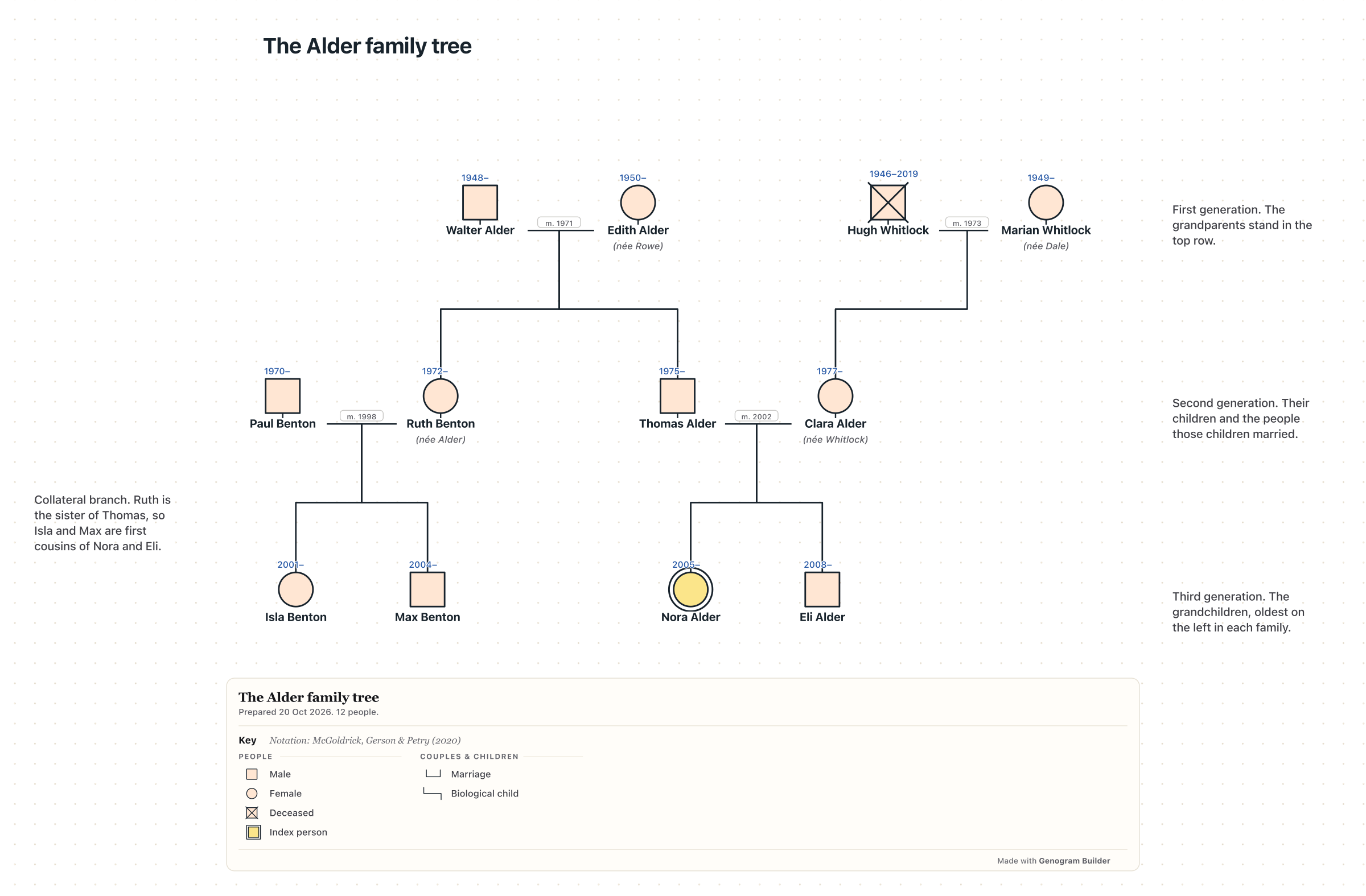
Genogram Builder reads the GEDCOM file and lays the family out as a chart, with each generation on its own row, partners side by side and children under their parents. Open the editor, choose Export, then Import a family file, and select the ZIP file as Ancestry delivered it, or drop it on the canvas. The import shows how many people the file holds before anyone is placed.
One chart holds up to 1,000 people. For a larger tree, choose One person’s family, pick the person at the centre and set up to five generations above and below. Direct line keeps the ancestors and descendants with their partners, which suits a chart of your own line, and Close relatives adds brothers, sisters, aunts, uncles and cousins.
To print, choose Export, then Print or PDF at any size. Under Layout, One sheet fits the chart on a single page from A4 or Letter up to A0, and Several sheets splits it across pages, sized by Scale or by Pages across, with an overlap, crop marks and an assembly map. When names would print smaller than 7 pt, the dialog says so and offers a larger paper or several sheets. The PDF is made on your device, and PDF export needs a free account and carries a watermark on the free plan.
| Task | Ancestry website | Genogram Builder |
|---|---|---|
| What prints | The part of the tree on the screen | The whole chart |
| Generations | What fits on the screen | Everyone, or up to five above and below one person |
| Paper | Set in the print dialog of the browser | A4, Letter, Legal, A3, Tabloid, A2, A1 or A0 |
| Large charts | Print each part of the tree in turn | Several sheets with crop marks and an assembly map |
| From a phone | The website in a browser, not the app | The editor in a browser |
Common questions
Printing an entire Ancestry tree at once
Ancestry’s help says that printing the family tree from Ancestry in one piece is not currently available. Print each part of the tree in turn, order a poster through MyCanvas, or chart the GEDCOM file in the editor.
Printing photos with the chart
Ancestry says a GEDCOM file leaves photos and other media out, so a chart made from it in the editor shows names, dates and relationships without photos.
Saving the tree as a PDF instead of paper
In the print dialog of your browser, choose to save as a PDF instead of sending the page to a printer. In the editor, Print or PDF at any size downloads a PDF file.
Sources and methodology
We make Genogram Builder. We used the references below for this guide. Last checked on 11 November 2026.
Import the GEDCOM file of your Ancestry tree and print the whole family as a PDF on one sheet or several.