Seven checks find most names missing from a pedigree chart
A pedigree chart in Family Tree Maker shows the ancestors of one person and nothing else unless you ask for it. When names are missing on a pedigree chart in Family Tree Maker, work through the checks below in order, and generate the chart again after each one. The first four are chart options and take a minute. The last three look at the tree itself.
MacKiev publishes no article on missing names under that title. Each check below applies an article from its knowledge base, and the version that article covers is named beside it. The chart articles cover FTM 2017 for Windows and FTM for Mac versions 1 to 3, so a label in FTM 2019 or FTM 2024 can differ a little.
- Check the root person
The chart is built from the person selected before you generated it. Use the Select Root Person button to see who that is.
- Raise the generations
Set Generations high enough to reach the ancestors you expect.
- Undo removed people
Click the Blue Reset icon to bring back anyone removed with Remove Person from Chart.
- Check the included facts
Open Items to Include and make sure the name is still in the list of facts on the chart.
- Check preferred parents
A child with two sets of parents shows only the preferred set on charts.
- Find detached people
Run the Kinship Report with Show unrelated individuals to list people with no link to the tree.
- Compact the file
Choose Compact File from the Tools menu with Perform extended analysis ticked.
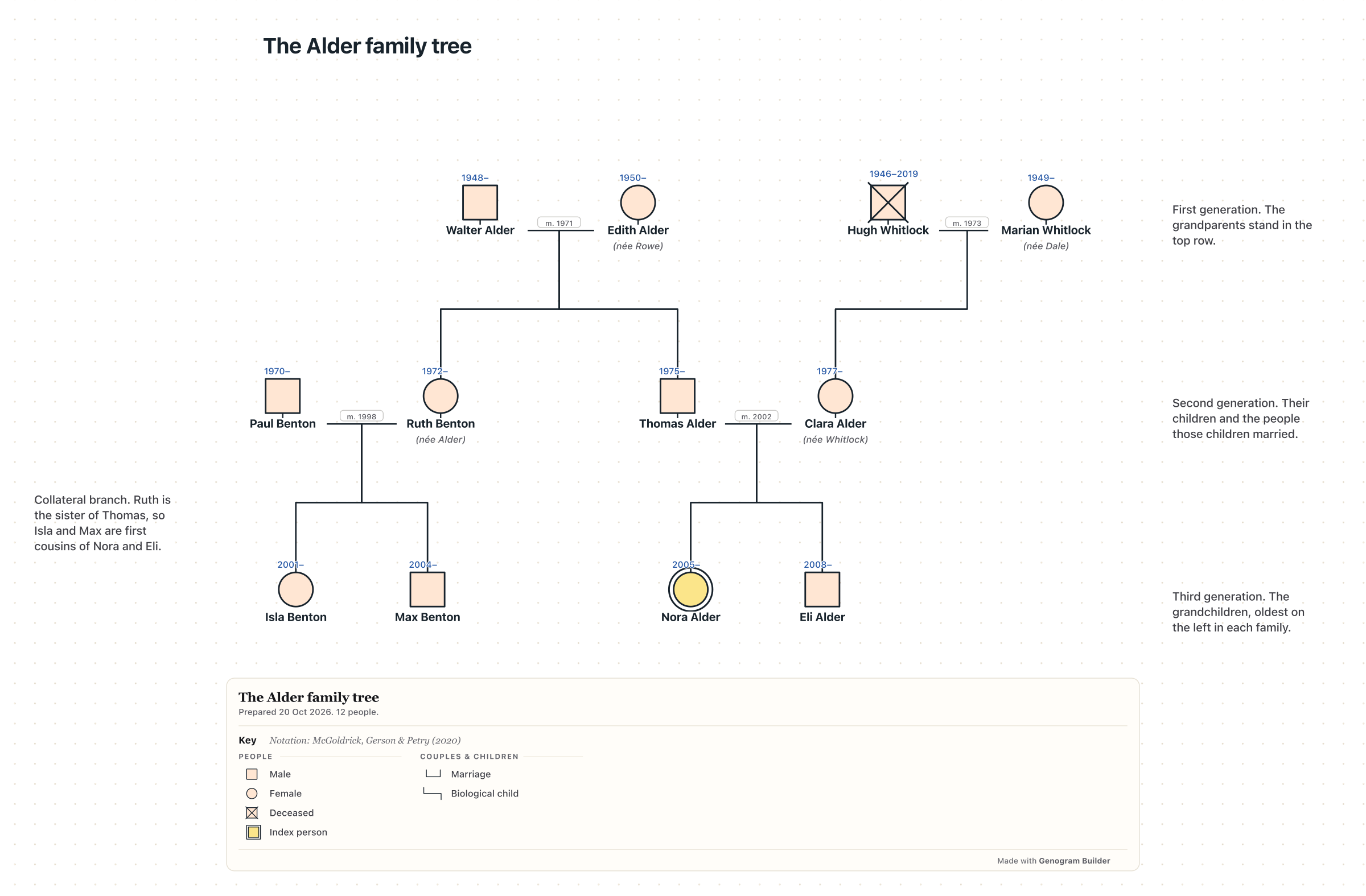
Genogram Builder
Draw the same tree from a GEDCOM file
Export a GEDCOM file from Family Tree Maker and open it in the editor to see every person it holds on one chart.
- Opens GEDCOM files without an account
- Up to 1,000 people on one chart
- A direct line up to five generations each way
The root person and the generations decide who fits on the chart
The chart article for FTM 2017 for Windows says that the Select Root Person button takes you to the person you selected before generating the chart. A pedigree chart climbs from that person, so a brother, a cousin or a second spouse of the root person has no place on it. Select the right person in the People workspace first, then open the chart again.
The same article explains the Generations option, which sets how many generations of ancestors appear. A chart set to four generations stops at the great-grandparents, whatever the tree holds above them. MacKiev adds that no chart larger than 200 inches can be exported or printed, so a chart of many generations may need the Book layout, which the Pedigree chart offers beside Poster.
Two checkboxes at the foot of the options bring in people a pedigree chart leaves out. Include siblings of primary individual shows the brothers and sisters of the root person on the same level, and Include spouses of primary individual adds the husband or wife. Include empty branches draws blank boxes for ancestors you have not entered, which can look like missing names on paper but marks a gap in the research.
People removed from a chart stay removed until you reset it
MacKiev’s chart article describes a right-click command, Remove Person from Chart, that takes a person or a whole branch off the chart without removing them from the tree file. It is easy to use by accident on a crowded chart. The Blue Reset icon resets the marking, the removed people and the box locations.
The reset does not touch layout settings such as spacing or the background. To reset those as well, click Use Saved Settings and choose Default Template. A chart saved with the Save Chart icon keeps its people, facts and formatting, so a saved chart you reopen from the Collection tab of the Plan workspace still holds the people removed from it.
Items to Include and the fonts control what each box prints
Each box prints the facts listed under Items to Include. The Blue Plus sign adds a fact and the Red X removes one, and the Options button below the list sets how each fact is labelled on this chart only. On a Mac the chart article for FTM for Mac calls that button Name Options. If a box shows dates but no name, open this list first.
Fonts sets the font, the size and the colour of each kind of text, and Fact Default formats every included fact at once. A name printed in white, or in a size too large for the box, can look missing. The Spacing choices Perfect, Collapsed, Squished and Custom change how close the rows sit, and the Overlap choices decide whether names in the first generations may overlap.
A pedigree chart follows the preferred parents and the preferred spouse
A child can have more than one set of parents in Family Tree Maker, such as birth parents and adoptive parents. The relationship article for FTM 2019 says you choose which parents are shown in the pedigree and family view as well as in charts and reports. In the editing panel of the father or mother, go to Preferred parents, click Change and select the parents. If a grandparent is missing on one side, the other set of parents is probably preferred.
The same rule applies to spouses. The Windows article on additional spouses says the preferred spouse is the one shown in the family group view, the pedigree view and in charts and reports. On Windows, open the Person tab, click Relationships, select the spouse and tick Preferred spouse. The Mac article uses the Spouse icon next to the name and Set Spouse Order instead.
A detached person never reaches the chart of the root person
A person entered without a link to a parent or a child sits in the tree file but on no chart of the family. The article Fixing Relationship Mistakes in FTM 2017-2019 gives two ways to find such people in the Publish workspace. Open the Kinship Report, choose All individuals and tick Show unrelated individuals, and anyone completely disconnected shows a blank under Relationship. Open the Extended Family Chart and tick Include all individuals, and detached people appear apart from the rest with no lines to them.
To link a detached person, select them in the index of the People workspace, open the Person menu, choose Attach/Detach Person and then Attach Father, Mother, Spouse or Child. Pick the relative from the list, choose the family and click OK. Generate the pedigree chart again afterwards.
Display scaling, a damaged file or a privatized export can hide names
On Windows, MacKiev’s display article covers text that does not display correctly. Right-click the Family Tree Maker shortcut, choose Properties, open the Compatibility tab and tick Disable display scaling on high DPI settings. When names are missing in every view, compact the file. The compacting article for FTM 2017, 2019 and 2024 says to choose Compact File from the Tools menu, keep Perform extended analysis ticked and click Compact.
A chart made from an exported file is a different case. The GEDCOM article for FTM 2017 for Windows says that Privatize living people exports surnames and relationships but not first and middle names. A pedigree chart drawn from that file in another program shows living people by surname only. Export again with the box unticked if the file stays private.
| Setting | Windows | Mac |
|---|---|---|
| Fact label options on a chart | Options button | Name Options button |
| Preferred spouse | Person tab, Relationships, Preferred spouse | Spouse icon, Set Spouse Order |
| Program settings in FTM 2024 | Tools menu, then Options | Family Tree Maker 2024 menu, then Settings |
| Display scaling fix | Compatibility tab of the shortcut | Not covered by MacKiev |
The editor draws every person a GEDCOM file holds
A second chart is a quick way to tell a setting from a missing record. Export the tree from Family Tree Maker with Export from the File menu as a GEDCOM file, then open Genogram Builder, choose Export and Import a family file. The import states how many people the file holds before it places anyone. If a name appears there, the record is safe, and the names are missing from the pedigree chart in Family Tree Maker because of a setting.
One chart in the editor holds up to 1,000 people. For a larger file, choose One person’s family, pick the person at the centre, choose Direct line and up to five generations above and below, which brings in ancestors, descendants and their partners. A person taken off the canvas with Hide from the canvas stays in the chart and comes back with the steps in Hide, copy or delete a person. Charts export as PDF or PNG with a free account, with a watermark.
Common questions
Why a sibling of the root person is missing
A pedigree chart shows ancestors. Tick Include siblings of primary individual in the chart options to add the brothers and sisters of the root person on the same level.
Why a whole branch disappeared after printing
A branch removed with Remove Person from Chart stays off that chart and any saved copy of it. Click the Blue Reset icon and generate the chart again.
Whether names missing from a pedigree chart in Family Tree Maker mean lost data
Find the person in the index of the People workspace first. If they are there, the record is safe and the cause is a chart setting, a preferred parent or a missing link.
Sources and methodology
We make Genogram Builder. We used the references below for this guide. Last checked on 11 November 2026.
- MacKiev, Customizing, Formatting and Saving a Chart in FTM 2017 for Windows
- MacKiev, Customize, Format and Save your chart in Family Tree Maker for Mac 1-3
- MacKiev, Fixing Relationship Mistakes in FTM 2017-2019
- MacKiev, Specifying a Relationship Type and Relationship Status in FTM 2019
- MacKiev, Entering additional spouses on Family Tree Maker
- MacKiev, Entering additional spouses in Family Tree Maker for Mac
- MacKiev, Exporting and Importing GEDCOM Files in FTM 2017 for Windows
- MacKiev, Compacting a File in FTM 2017, 2019 and 2024
- MacKiev, Fixing Display Issues in FTM for Windows
- MacKiev, Choosing a Status for a Couple’s Relationship
Import the GEDCOM file of your tree and check every name on one chart, with no account needed to begin.